
Gemini for Google Workspace: Gmail, Docs, Sheets and More

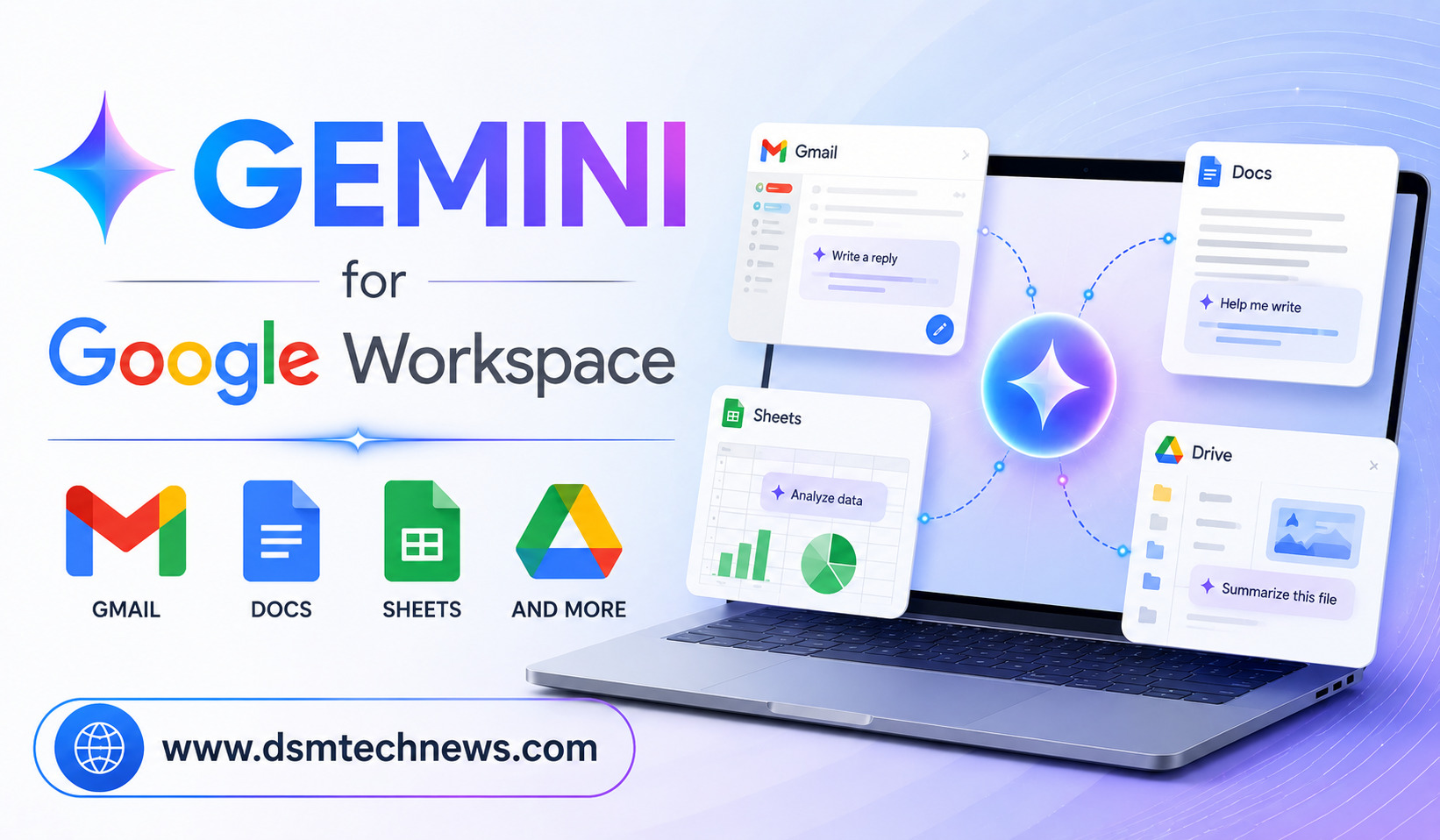
Google Gemini has become deeply integrated into Google Workspace, turning familiar tools such as Gmail, Google Docs, Google Sheets, Drive, Slides, Meet, and Vids into more AI-powered productivity applications.
Instead of opening a separate chatbot whenever you need help, Gemini can work directly inside the applications where you already write emails, create documents, analyze data, and manage files. Depending on your Google Workspace or Google AI plan, Gemini can draft emails, summarize conversations, create documents, analyze spreadsheets, generate images, find information across files, and assist with presentations.
This makes Gemini particularly useful for professionals, students, business owners, marketers, bloggers, and anyone who spends a significant amount of time using Google’s productivity tools.
What Is Gemini for Google Workspace?
Gemini for Google Workspace is Google’s collection of AI features integrated into Workspace applications. Rather than functioning only as a standalone chatbot, Gemini can understand and assist with content inside supported Google applications.
The exact features available depend on your account, subscription, organization, language, and region. Google currently states that many Workspace Gemini features require an eligible Google Workspace or Google AI plan.
The basic idea is simple: instead of copying information from Gmail into an AI chatbot, asking for help, and copying the result back, Gemini can increasingly assist you directly within Workspace.
That can remove several repetitive steps from everyday work.
Gemini in Gmail
Email is one of the areas where Gemini can provide immediate productivity benefits.
Gemini in Gmail can summarize long email threads, suggest replies, draft messages, find information from previous emails, retrieve information from Google Drive, and work with relevant Google Calendar information.
For someone with a busy inbox, summarization can be particularly useful.
Instead of reading a long conversation from beginning to end, you can ask Gemini to summarize the discussion and identify the important points or action items.
For example, you could ask:
“Summarize this email thread and list the decisions that were made.”
Or:
“Catch me up on the latest emails about this project.”
Gemini can also help write new messages. You can provide a short description of what you want to communicate and ask Gemini to create a professional draft.
You can then adjust the wording yourself before sending it.
Gemini for Email Replies
Writing replies can consume a surprising amount of time, especially when you receive dozens of routine messages.
Gemini can suggest context-aware replies and help you create responses based on the conversation. Google also provides writing and proofreading capabilities for Gmail, allowing users to improve tone, style, and clarity.
For example, instead of writing:
“Reply politely and say that I can attend the meeting next Tuesday.”
you can ask Gemini to prepare the response.
The important advantage is that the AI handles the first draft while you remain responsible for reviewing it.
Gemini in Google Docs
Google Docs is another major area where Gemini can help.
Gemini in Docs can draft and refine content, summarize documents, reference other files, create personalized documents, and generate images.
This can be especially useful for people who regularly create articles, reports, proposals, project plans, marketing documents, or business communications.
For example, you can ask Gemini to:
“Create a first draft of a 1,000-word article about AI productivity tools.”
You can then ask it to make the introduction more engaging, simplify a section, improve transitions, or change the tone.
This makes Gemini useful throughout the writing process rather than only at the beginning.
Gemini Can Summarize Long Documents
Long documents can be difficult to review when you are short on time.
Gemini in Docs can summarize documents and help identify important information. Google also allows Gemini to reference other files and emails when working with eligible Workspace features.
For example, after receiving a lengthy project proposal, you could ask Gemini to identify the main objectives, deadlines, risks, and decisions that require attention.
This does not eliminate the need to read important documents, but it can make the initial review much faster.
Gemini Can Match Writing Style and Format
One particularly useful feature for content creators and businesses is the ability to create documents based on existing files.
Google’s Workspace documentation describes capabilities for matching the writing style and format of other Google Drive documents.
This could be useful when a company has a particular style for press releases, reports, proposals, newsletters, or marketing documents.
Instead of explaining the desired format every time, an existing document can serve as a reference.
For businesses that produce large amounts of standardized content, this can make AI-generated drafts more consistent.
Gemini in Google Sheets
Gemini in Sheets goes beyond writing assistance.
It can help create tables and formulas, analyze spreadsheet data, generate insights, build charts, and perform certain spreadsheet actions. Google also provides an AI function that can generate text, summarize information, categorize data, analyze sentiment, and access current information from Google Search.
This is particularly useful for people who are comfortable using spreadsheets but do not want to spend time writing complicated formulas.
For example, you might ask Gemini to analyze sales data and identify the strongest-performing products.
You could also ask it to create a project tracker, expense sheet, or other structured spreadsheet.
Build Entire Spreadsheets With Gemini
Google has also introduced more advanced capabilities for building or editing entire spreadsheets.
Gemini in Sheets can create new sheets and complete end-to-end tasks on existing spreadsheets. It can first generate a plan and template outline before building the requested structure.
For example, you could request:
“Create a monthly business expense tracker with categories, dates, amounts, payment methods, totals, and a summary dashboard.”
Gemini can use that instruction to construct a spreadsheet structure rather than simply giving you a formula.
This can be useful for beginners who understand what they want to track but do not know how to build the spreadsheet manually.
Gemini’s AI Function in Sheets
Another interesting feature is the AI function.
Google allows eligible users to use functions such as =AI() or =Gemini() within Sheets to generate or process information.
For example, you could use an AI function to create a short description based on information in another cell.
You can also use AI functions to categorize information or summarize content across spreadsheet data.
This brings generative AI closer to traditional spreadsheet workflows.
Instead of treating AI as a separate application, it becomes another tool available inside the spreadsheet.
Gemini in Google Drive
Google Drive can contain hundreds or thousands of files, making it difficult to find specific information.
Gemini in Drive can help users find files, summarize documents, generate insights, and analyze PDFs. Google’s Workspace documentation also describes AI overviews for files and folders.
For example, instead of manually opening several reports, you might ask Gemini to identify which documents contain information about a particular project.
You can also ask it to summarize information from multiple documents.
This can be especially useful for businesses where important information is spread across presentations, reports, spreadsheets, PDFs, and other files.
Gemini in Google Slides
Creating presentations can be another time-consuming task.
Gemini in Slides can help generate slides, create presentation content, generate images, and improve existing slide designs. Google also lists capabilities for creating presentations and removing image backgrounds.
Instead of starting with a blank presentation, you can describe the subject and let Gemini help develop the structure.
For example:
“Create a presentation explaining how AI is changing small businesses. Include an introduction, five key changes, examples, challenges, and a conclusion.”
You can then edit the slides to match your own requirements.
AI-generated presentations should still be reviewed carefully because automatically generated information may contain errors or lack the specific context your audience needs.
Gemini in Google Meet
Gemini’s Workspace integration also extends to meetings.
Depending on the available Workspace plan and features, Gemini can assist with meeting-related tasks such as note-taking, summaries, translated captions, and other AI-powered meeting capabilities. Google lists features including “Take notes for me,” translated captions, and speech translation among its Workspace AI offerings.
This can reduce the amount of manual note-taking required during meetings.
After a meeting, the resulting information can also become the starting point for follow-up tasks, emails, or project documentation.
Gemini in Google Vids
Google Vids is designed for creating workplace videos, and Gemini can assist with parts of the video-production process.
Google’s Workspace documentation lists AI capabilities for Vids, including creating videos with AI, generating scripts and voiceovers, and adding generated images or stock media.
This could be useful for businesses that need internal training videos, product explainers, presentations, or other workplace video content.
The benefit is that users can start with a written idea rather than needing professional video-production skills.
Gemini Can Connect Different Workspace Apps
One of the most interesting aspects of Gemini for Workspace is the possibility of working across multiple sources.
For example, Gemini in Gmail can use information from previous emails and eligible Drive files. Google also documents features that allow users to reference files when asking Gemini to write or refine content.
This creates a more connected workflow.
Imagine receiving a project update by email, having supporting research stored in Drive, and maintaining a project plan in Docs. Instead of manually moving information between applications, Gemini can help connect relevant information where supported.
This is one of the main reasons Workspace integration can be more useful than using a standalone AI chatbot for every task.
How Bloggers Can Use Gemini for Workspace
For bloggers and content creators, Gemini can support almost the entire publishing process.
Research notes can be stored in Drive. Gemini can help organize those notes and summarize relevant files. In Docs, it can help create an outline, draft sections, improve readability, and generate supporting images.
Gmail can then be used to communicate with clients or collaborators, while Sheets can track article ideas, keywords, publishing dates, and performance data.
This creates a connected content workflow.
Instead of using AI for only one part of content creation, you can use Gemini across the different stages of the process.
How Small Businesses Can Use Gemini
Small businesses can also benefit from Workspace AI.
A business owner could use Gemini to draft customer emails in Gmail, prepare proposals in Docs, analyze sales information in Sheets, organize files in Drive, and create presentations in Slides.
The main advantage is time savings.
Small businesses often have limited staff, so reducing repetitive administrative work can free up more time for customer service, marketing, product development, and other important activities.
However, businesses should establish clear policies around confidential information, permissions, and human review before using AI extensively.
Is Gemini for Workspace Free?
The answer depends on the Google account and plan.
Google currently states that Gemini Workspace features require eligible Google Workspace or Google AI plans, although availability differs by feature and account type. Personal Google accounts can access some AI features through Google AI plans, while organizations generally need an eligible Workspace plan.
Google also has an experimental program called Google Workspace Experiments, which replaced the previous Workspace Labs name in March 2026. Experimental features can change over time and may have usage limitations.
Therefore, users should check their specific account before assuming that every Gemini feature is available.
What Are the Limitations?
Gemini can make mistakes.
Google itself warns that Gemini features may produce inaccurate or inappropriate information and should not be relied on as professional medical, legal, financial, or other professional advice.
This matters especially when Gemini is working with business documents or important communications.
An AI-generated email should be reviewed before sending. Spreadsheet formulas and calculations should be checked. Important facts in reports should be verified. Confidential information should only be used according to your organization’s policies and Google’s applicable data controls.
The best approach is to treat Gemini as a productivity assistant rather than an unquestionable authority.
Final Thoughts
Gemini for Google Workspace is becoming one of the most practical ways to use generative AI because it brings AI directly into applications people already use every day.
In Gmail, it can summarize conversations, draft emails, suggest replies, and find relevant information. In Docs, it can write, edit, summarize, personalize documents, and generate images. In Sheets, it can create tables and formulas, analyze data, generate insights, and perform spreadsheet tasks. Drive, Slides, Meet, Vids, and other Workspace applications add further AI capabilities.
The biggest advantage is not any individual feature. It is the connection between them.
When AI can assist with email, documents, spreadsheets, files, presentations, and meetings within the same productivity ecosystem, it becomes easier to move from information to action without constantly switching applications.
For professionals, students, bloggers, and small businesses, Gemini for Google Workspace can therefore become a useful everyday productivity layer—provided that users continue to review AI-generated work and remain in control of important decisions.
Google Gemini has become deeply integrated into Google Workspace, turning familiar tools such as Gmail, Google Docs, Google Sheets, Drive, Slides, Meet, and Vids into…