
Gemini on Android: The AI Features That Can Actually Save You Time

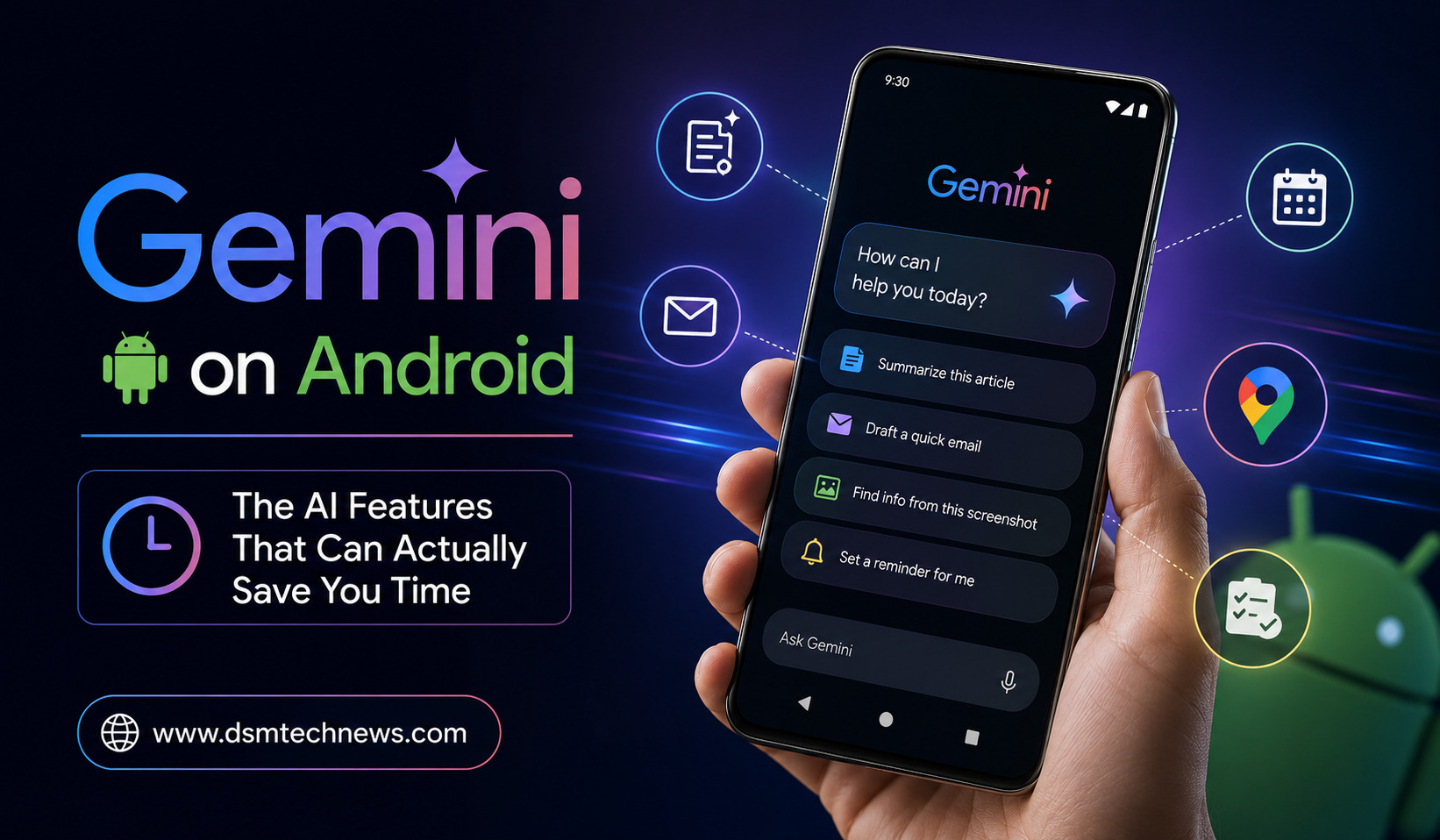
AI assistants are becoming a normal part of the smartphone experience, but the real value of an AI assistant is not simply answering questions. The more useful question is whether it can help you complete everyday tasks faster.
On Android, Google Gemini is increasingly designed to work as a mobile assistant rather than just a chatbot. It can understand text, voice, images, your camera, and screen content, while also connecting with apps such as Gmail, Google Maps, YouTube, Calendar, Messages, and other supported services.
That means Gemini can potentially save time on small tasks that normally require switching between apps, typing instructions, searching manually, or remembering information.
Here are the Gemini Android features that are genuinely useful for saving time in 2026.
1. Use Gemini Without Opening Another App
One of the biggest advantages of Gemini on Android is that it can act as your mobile assistant.
Depending on your device and setup, you can activate Gemini through touch or by saying “Hey Google.” On supported Android devices, Gemini can appear over the app you’re currently using, allowing you to ask questions or request help without completely changing your workflow.
Imagine reading a webpage and wanting a quick explanation. Instead of copying the text, opening an AI app, pasting it, and asking a question, you can bring up Gemini and ask about the information you’re viewing.
That may only save a minute each time, but repeated throughout the day, these small savings can become significant.
2. Gemini Live Makes Voice Conversations Faster
Typing every question is not always convenient.
Gemini Live allows you to have a natural spoken conversation with Gemini. You can interrupt the assistant, change topics, brainstorm ideas, ask follow-up questions, and continue the conversation without repeatedly typing prompts.
This can be useful when you’re walking, cooking, commuting, or simply don’t want to type.
For example, you could say that you have a busy day and need help organizing your priorities. Gemini can discuss the plan with you rather than requiring you to construct a detailed written prompt.
Gemini Live also supports camera and screen sharing, allowing you to show Gemini what you’re looking at and discuss it in real time.
3. Ask Gemini to Work With Gmail
Email can consume a surprising amount of time.
Gemini’s connected-app capabilities can help with Gmail-related tasks, including summarizing emails and finding useful information from your messages.
Instead of searching through a long email conversation yourself, you can ask Gemini to help identify the important points.
This can be particularly useful when you return to work after being away from your inbox.
For example, you could ask for the key decisions from a long conversation or identify messages that require a response.
The important thing is that you should review AI-generated summaries before acting on important information.
4. Create Calendar Events and Reminders
Small administrative tasks are perfect candidates for AI assistance.
Gemini can work with supported apps to help create events and reminders. Google also documents support for tasks such as creating reminders, events, notes, and lists.
Instead of opening your calendar, selecting a date, entering a title, and filling in the details manually, you can describe what you need.
For example:
“Remind me tomorrow morning to call the client.”
Or:
“Create a meeting for Friday at 3 PM.”
When these simple actions are handled conversationally, your phone starts behaving more like an assistant instead of a collection of separate apps.
5. Control Your Phone With Gemini
Gemini can also work with Android’s Utilities capabilities.
Google says Gemini can perform actions such as managing alarms and timers, opening apps, reading and replying to notifications, controlling media, and changing certain phone settings.
These are simple tasks, but they’re exactly the kind of actions that can interrupt your workflow.
Instead of navigating through menus, you can ask Gemini to perform supported actions for you.
For example, you could ask it to set a timer, turn on the flashlight, or adjust certain device settings.
The available actions depend on your device, settings, permissions, and supported features.
6. Get Directions Without Manually Searching
Google Maps integration makes Gemini particularly useful for Android users.
Gemini can connect with Maps to help answer questions about places and directions. On supported setups, it can also assist with personal requests involving locations and travel.
Instead of opening Maps first and searching manually, you can ask Gemini a natural-language question.
For example:
“Where can I find a coffee shop near the office?”
Or:
“How long will it take to get to the airport?”
This becomes even more useful when your request combines multiple pieces of information.
7. Send Messages With Less Typing
Writing messages on a smartphone is another area where Gemini can save time.
Google allows Gemini on Android to help compose, edit, and send text messages through the Messages app, subject to the required permissions and account setup.
You can describe what you want to say instead of typing the entire message yourself.
For example, you could ask Gemini to write a short message explaining that you’ll arrive 20 minutes late.
This can be useful when your hands are occupied or when you need to communicate something quickly.
However, messages created through Gemini should be reviewed before sending, especially if they contain important details or could be misunderstood.
8. Ask Gemini About What’s on Your Screen
Screen awareness is one of the more interesting parts of Gemini’s Android experience.
Google says Gemini can provide contextual help based on what is displayed on your screen. On supported experiences, it can help identify information from content you’re viewing, including information in videos.
This removes a common step in AI workflows: copying information into the chatbot.
For example, if you’re looking at a complicated webpage, you can ask Gemini to explain it. If you’re viewing information in an app, you can ask questions about what you’re seeing where the feature is supported.
That makes AI assistance feel more integrated into Android.
9. Use Your Camera Instead of Explaining Everything
Sometimes describing something in words takes longer than showing it.
Gemini supports camera-based interaction on Android, allowing you to use your phone’s camera as part of a conversation. Gemini Live can also use video streaming so you can show Gemini what you’re looking at.
This can be useful for identifying objects, understanding visual information, discussing documents, or getting help with something you’re looking at.
For example, rather than typing a long description of a device problem, you could show Gemini the device and ask what you’re seeing.
10. Summarize YouTube Videos
Long videos can contain useful information, but watching an entire video isn’t always practical.
Google’s Android documentation says Gemini can search and summarize videos in supported situations.
This can save time when you’re looking for a particular piece of information rather than wanting to watch the entire video.
For students and professionals, this could be particularly useful for educational or instructional content.
However, summaries should not automatically replace watching the original material when important details or context matter.
11. Play Music Without Searching Manually
Gemini can connect with music services such as YouTube Music and Spotify in supported configurations.
Instead of opening the music application, searching for an artist, and selecting a playlist, you can describe what you want.
For example:
“Play some relaxing music.”
Or:
“Play my workout playlist.”
The advantage is not revolutionary, but it makes common smartphone interactions faster and more conversational.
12. Create Images While You’re Working
Gemini can also generate images and allow users to use generated content in supported workflows.
Google’s Android documentation notes that Gemini can generate custom images and that users can drag generated images into apps such as Gmail.
This can be useful for quick visual concepts, social-media ideas, presentations, emails, or creative projects.
Instead of switching between a separate image-generation service and another application, you can perform more of the process within the Google ecosystem.
13. Gemini Live Can Keep Working in the Background
Gemini Live is not limited to a full-screen conversation.
Google says users can put Live in the background and continue using their phone and other apps while the conversation continues. Depending on settings, a Live conversation can also continue when the phone is locked.
This makes voice-based AI more practical.
You could begin discussing an idea with Gemini, switch to another application, and continue the conversation rather than constantly returning to the AI interface.
14. Newer Android Phones Can Go Further
Some newer Android devices have additional Gemini-powered capabilities.
Google’s current Android documentation describes “Gemini Intelligence” for certain high-end devices, including newer Pixel and Samsung models. These devices can support capabilities such as multi-step tasks, proactive suggestions, on-device AI processing, and deeper connections with personal information.
Google says supported Gemini Intelligence phones include devices such as the Pixel 11 series and Samsung Galaxy Z Fold8, Z Fold8 Ultra, and Z Flip8. Availability can vary by country, language, device, and software configuration.
This is where Android AI is becoming more interesting: the assistant can move from simply responding to commands toward helping users complete multi-step tasks.
15. Connect Gemini to the Apps You Already Use
Perhaps the most important feature is not one individual capability but the connected-app system.
Gemini can connect with supported services to help with Gmail, Maps, YouTube, Calendar, Messages, music, smart-home controls, and other tasks.
This means the value of Gemini increases as it becomes connected to more of your daily workflow.
Instead of thinking of Gemini as another app you have to open, you can think of it as an AI layer that sits across parts of your Android experience.
Of course, connecting apps also means users should pay attention to permissions and privacy settings. Google provides controls for managing which connected apps Gemini can access.
Which Gemini Features Actually Save the Most Time?
Not every AI feature will have the same impact.
For everyday Android users, the biggest time-savers are likely to be voice interaction, screen and camera assistance, reminders, messages, Maps, email summaries, phone controls, and connected apps.
For professionals, Gmail, Calendar, document-related tasks, research, and multitasking can be especially valuable.
For students, Gemini Live, screen and camera assistance, research, video summaries, and study-related conversations can reduce repetitive work.
The best features are therefore the ones that eliminate several small steps from tasks you already perform regularly.
Gemini on Android Is Becoming More Than a Chatbot
The biggest change in Google’s Android strategy is that Gemini is increasingly designed to operate as an assistant rather than a standalone AI application.
It can understand what you say, work with visual information, connect to other applications, perform certain actions, and provide contextual assistance.
That is much closer to the original idea of a digital assistant: something that helps you get things done instead of simply answering questions.
Still, availability varies by device, language, country, account type, permissions, and Google’s ongoing feature rollouts.
Final Verdict
Gemini on Android is most useful when it removes steps from everyday tasks.
Asking a chatbot a question is convenient, but the bigger productivity gains come from asking Gemini to interact with your phone and connected apps.
Sending a message, creating a reminder, checking a location, controlling your phone, summarizing information, discussing what’s on your screen, or talking through an idea can all become faster when you use voice and AI instead of navigating through multiple menus.
Gemini won’t magically make every Android task faster, and some features remain limited to supported devices and accounts. But if you regularly use Google’s apps and services, Gemini can become a genuinely useful productivity layer.
The best approach is simple: don’t use Gemini just because it is available. Use it for the repetitive tasks that waste your time. That’s where Google’s AI assistant can make the biggest difference.
AI assistants are becoming a normal part of the smartphone experience, but the real value of an AI assistant is not simply answering questions. The…